



How to get your Open Data on Data.gov
Overview
Learn how Data.gov harvests metadata from agency data sources and how to request a new harvest source or modify an existing one.
Source
Details
Overview
Data.gov is the federal government’s central open data catalog. It does not host data files directly. Instead, it collects metadata (the descriptions, contact information, and download links for your datasets) from a file your agency publishes and maintains. That file is harvested on a schedule and the records appear on catalog.data.gov.
This means that what you publish is exactly what appears on Data.gov. The harvest system reads your source file and stores it as-is. It does not correct typos, normalize field values, or fill in missing information. Your agency owns the quality of your catalog entries.
This guide covers how the harvest pipeline works, what your agency needs to prepare, and how to request a new harvest source or modify an existing one.
Overview Diagram
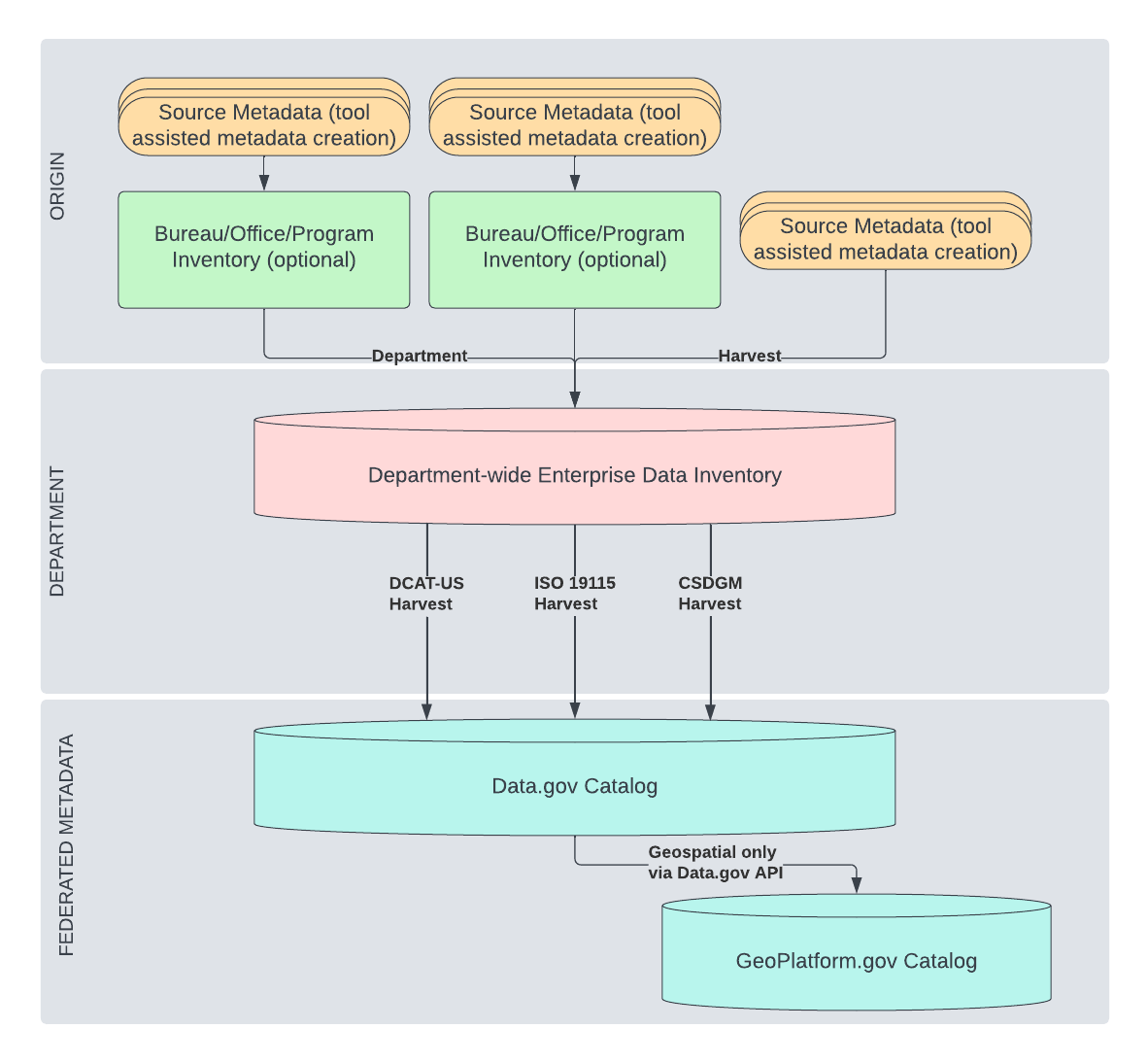
How the harvest pipeline works
The process has three stages.
1. Your agency publishes a metadata source file. This is a publicly accessible file such as a data.json for DCAT-US, or a web accessible folder (WAF) of XML files for ISO or CSDGM metadata. You host this file on your own infrastructure and keep it up to date.
2. Data.gov harvest reads the file on a schedule. Harvest.data.gov runs automated jobs (daily, weekly, or at another configured frequency) that fetch your source file, parse each dataset record, and store it. Records that cannot be parsed due to errors in your file are skipped; they do not appear on Data.gov and do not affect other records in the same harvest run. Your agency is responsible for fixing errors in your source file.
3. Catalog.data.gov displays the stored records. The catalog reads from what harvest stored and renders each dataset as a public page. The raw record stored by harvest is always accessible via the “View Raw Data” link on any dataset page, so anyone can verify exactly what was ingested.
When you update your source file, the changes appear on Data.gov after the next scheduled harvest run but not immediately.
State, local, and tribal governments can also publish metadata on Data.gov using this same process.
Step 1: Prepare your metadata source
Choose a metadata standard
Data.gov currently supports three metadata standards.
DCAT-US (JSON) is the standard for most federal civilian agencies. It is required under the OPEN Government Data Act and OMB M-13-13. Your agency publishes a single JSON file (a catalog) at a stable public URL. For example, GSA’s catalog is at gsa.gov/data.json. The current version is DCAT-US 1.1. DCAT-US 3.0 is in active development; see the DCAT-US 3.0 guidance for transition information.
ISO 19115 (XML) is the standard recommended by the Federal Geographic Data Committee (FGDC) for geospatial metadata. If your agency publishes geospatial datasets, consult FGDC guidance for the current recommended profile.
CSDGM (XML) is a legacy geospatial standard created by the FGDC. It is no longer recommended. A significant limitation of CSDGM is that it has no unique identifier field. This means harvest cannot reliably track a dataset across changes: a URL or title change can cause the dataset to be deleted and re-created as a new record, breaking any existing links to the catalog page. If you are currently using CSDGM, the FGDC recommends transitioning to ISO 19115.
Publish your source at a stable public URL
Your metadata source file must be publicly accessible without authentication. Data.gov cannot harvest from files behind a login, API key, or VPN.
For DCAT-US, this is a single JSON file. For ISO or CSDGM, this is a web accessible folder (WAF) (a directory of XML files accessible at a public URL, one XML file per dataset).
For WAF sources: Data.gov expects a file timestamp to appear alongside each file link in the folder listing, and that timestamp should only be updated when the file content actually changes. If timestamps are absent or updated indiscriminately, harvest efficiency is reduced and Data.gov may need to reduce the harvest frequency for your source.
Step 2: Check whether your organization already has a harvest source
Before submitting a request, check harvest.data.gov to see whether your organization already has an active harvest source. Search for your agency or bureau name.
If your organization is already listed, you need a modification to an existing source, not a new one. Common reasons to request a modification include a changed source URL, updated notification email addresses, or a change in harvest frequency.
Step 3: Submit a request
Use the Harvest.data.gov Setup or Modification form to request a new harvest source or a change to an existing one. The form has two pages.
Page 1: Your organization
-
Your name and government email address
-
Whether this is a new source or a modification to an existing one
-
Your organization name, or the direct link to your organization on harvest.data.gov (for example,
https://harvest.data.gov/organization/gsa) -
Optionally, a URL for your organization’s logo if it is new or outdated
Page 2: Your source details
-
Source name: a short identifier with no spaces or special characters, following the convention
agencyname-json(for example,gsa-jsonordoi-arcgis) -
Source URL: the public URL of your metadata file or WAF folder
-
Notification emails: one or more addresses to receive harvest reports, separated by commas
-
Harvest frequency: how often Data.gov should fetch your file: daily and weekly are most common
-
Schema type: the metadata standard your file uses: DCAT-US 1.1, DCAT-US 3.0, ISO 19115-1, or ISO 19115-2
-
Source type: Document (a single file, such as
data.json) or Web Accessible Folder (a WAF of XML files) -
Notification preference: when you want to receive harvest reports: always, on error only, or on error or update
After you submit the form, the Data.gov team will add your source directly to harvest.data.gov. Your datasets will appear on catalog.data.gov after the first successful harvest run at your configured frequency.
For questions or to check the status of your request, email DataGovHelp@gsa.gov.
What appears on your catalog page
Every field visible on a dataset’s catalog page comes directly from your source file. Nothing is added or edited by harvest. The table below maps the most common fields.
| What you see on catalog.data.gov | Field in your data.json |
|---|---|
| Page title | title |
| "Published by" line | publisher.name |
| Description | description |
| Resource download rows | distribution (one row per entry) |
| Resource row label | distribution[].title — falls back to generic "Resource 1", "Resource 2", etc. if absent |
| Download button vs Visit Page button | distribution[].downloadURL renders a Download button; distribution[].accessURL renders a Visit Page button. A single dataset can mix both. |
| Resource format label | distribution[].mediaType — falls back to distribution[].format if mediaType is absent. Value is displayed verbatim. |
| Contact name and email | contactPoint.fn and contactPoint.hasEmail |
| License | license |
| Access level | accessLevel |
| Dataset Issued | issued |
| Dataset Last Modified | modified |
| Accrual Periodicity | accrualPeriodicity — displayed verbatim, including ISO 8601 duration codes like R/P6M |
| Location map | spatial — must be parseable coordinates (bounding box or GeoJSON polygon). A plain text string like "United States" will not render a map. |
| Tags | keyword and theme — both feed the tag cloud. Values are displayed verbatim. |
| Metadata Last Checked | Set by the harvest system — not from your file |
| "Explore Collection" widget | isPartOf — groups datasets under a named collection |
Fields that are absent from your source file simply do not appear on the page. There is no placeholder or default value.
Because harvest stores your record verbatim, the value you provide for any field is what users see. A mediaType of placeholder/value will appear as “PLACEHOLDER/VALUE.” An internal system identifier in your keyword array will appear as a public tag. Review your source file carefully before submitting a harvest request.
Harvest errors
When a harvest job encounters a record it cannot parse (due to malformed JSON, a missing required field, or an unreachable source URL) that record is skipped. The error is logged and included in the harvest notification email sent to the addresses you provided. The rest of the harvest run continues normally.
Harvest errors mean a dataset does not appear on Data.gov. They do not cause system failures and do not affect other agencies’ datasets. Your agency is responsible for correcting errors in your source file. Once corrected, the dataset will appear after the next successful harvest run.
If your source URL becomes unreachable, all datasets from that source will stop updating until the URL is restored and harvest successfully completes.
GeoPlatform
GeoPlatform.gov uses Data.gov as its source for geospatial dataset metadata, filtering on records that include geospatial fields. If your agency publishes geospatial metadata to Data.gov, it will also appear on GeoPlatform. The Data.gov and GeoPlatform teams coordinate on harvesting, metadata standards, and the relationship between the two catalogs.
Term definitions
Dataset: For Data.gov, this refers to the metadata describing a data asset (the title, description, contact information, and links to the actual data files). Data.gov does not host the data files themselves. Agencies are required to maintain a comprehensive data inventory for harvesting into Data.gov under the OPEN Government Data Act.
Harvest job: A single run of the harvest system that fetches your source file, processes each record, and updates Data.gov with additions, changes, and deletions.
Harvest source: The public URL where Data.gov collects metadata for your organization. Each source corresponds to one URL and one configured schedule.
Metadata: The structured information describing your datasets, following one of the supported standards (DCAT-US, ISO 19115, or CSDGM). Fields like title, description, keywords, contact information, and distribution links are all metadata. Your agency owns the accuracy and completeness of this information.